Data Engineering
  Data Strategy + Governance
  Data Migrations
  Concierge + Support
  Artificial Intelligence
  Training + Enablement
  Data Analytics + Insights
  Financial Services
  Communications, Media + Entertainment
  Healthcare + Life Sciences
  Technology + Digital Natives
  Manufacturing + Automotive
  Public Sector
  Retail + Consumer Goods
  Race to the Lakehouse
  AI + Data Maturity Assessment
  Unity Catalog
  Rapid GenAI
  Modern Data Connectivity
  Gatehouse Security
  Health Check
  Sample Use Case Library
  Blog
Blog  Events
  About Us
  Careers
  Founding Team

This article walks through that migration: from Power BI’s DAX-based security to Unity Catalog’s native row filters and column masks. Not as a theoretical comparison, but as a practical playbook for teams that need to unify their data security model. The goal is the same one we’ve been building toward across this series: guardrails enforced automatically, not manually maintained per tool. And it only works when your organization has the data engineering maturity to treat security as infrastructure, not as a spreadsheet of role assignments.
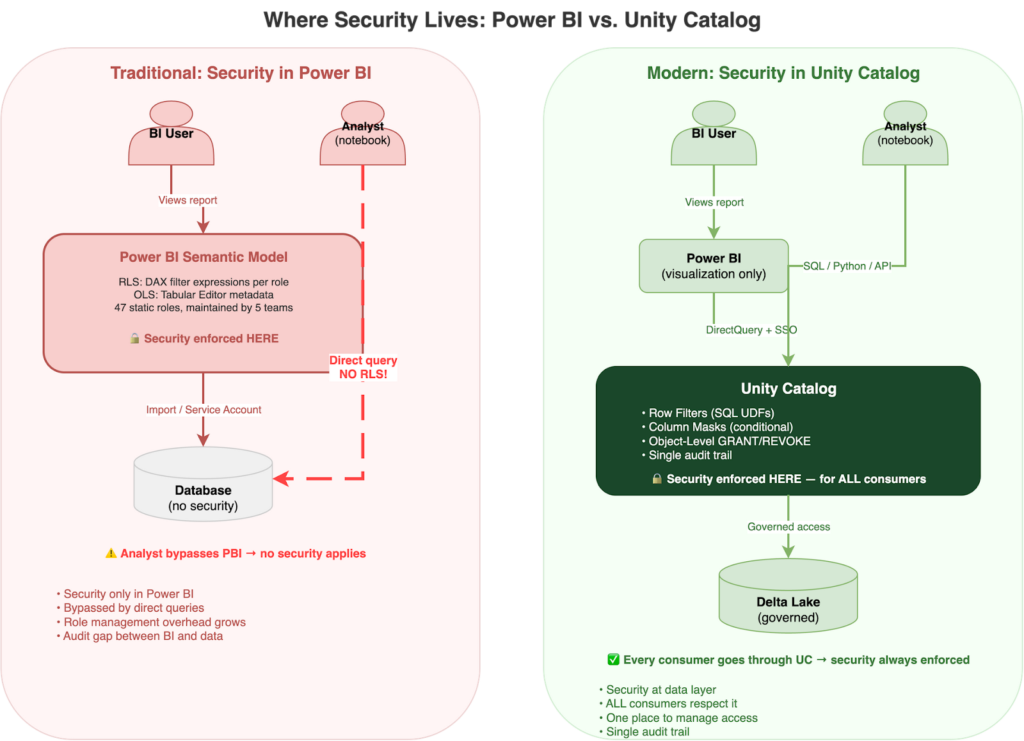
The Problem: Security That Lives in the BI Layer
Power BI’s security model was designed for a world where the BI tool was the only way anyone accessed the data. And for a long time, that was true. RLS in Power BI works through roles defined in Power BI Desktop’s Manage Roles editor. Each role contains DAX filter expressions. You write a filter like [Region] = "EMEA" on a table, publish the model, then assign users or security groups to that role in the Power BI Service. Filters propagate through active relationships in the semantic model, so a filter on the Regions table cascades to Sales, Inventory, and anything else connected through the data model. For dynamic filtering, USERPRINCIPALNAME() resolves to the logged-in user’s UPN, letting you build a single role backed by a mapping table instead of one role per region.
Object-level security (OLS) takes a different approach: instead of filtering rows, it hides entire columns or tables from specific roles. You configure OLS through Tabular Editor, setting column permissions to Read (visible) or None (hidden). But OLS is binary: a column is either fully visible or completely hidden. There’s no partial masking, no conditional logic, no “show the first two characters and mask the rest.” It’s metadata hiding, not true column-level security.
This worked well when BI was the only consumer. But organizations have moved on. Data scientists query the same tables from notebooks. ML pipelines read from the same Delta tables. APIs serve the same customer data. And none of those consumers go through Power BI’s security model. I’ve seen this pattern in every enterprise I’ve worked with, and the pain points are familiar:
- Management overhead grows with every role. The DAX per role is typically simple (a one-line filter expression). But each new region, department, or business unit means another role definition in Desktop, another publish cycle, another set of user-to-role assignments in the Service. Dynamic RLS with
USERPRINCIPALNAME()and a mapping table can reduce this to a single role, but many organizations end up with dozens of static roles before they discover that pattern. - The additive role trap: a user assigned to both a “Denied” role and an “Allowed” role sees everything. Power BI RLS uses a union model, so multiple roles combine additively, not restrictively. In my experience, this is the single most common source of RLS bugs in production.
- Service principals bypass RLS entirely. If your ETL process or embedded report uses a service principal for authentication, row-level security does not apply. (Note: Power BI Embedded offers
EffectiveIdentityto apply RLS on behalf of specific users even with a service principal, but this is an embedded-specific workaround, not a platform-level solution.) - Testing requires manual “View As” for every role. There’s no automated test framework for Power BI RLS. You click through each role, visually inspect the results, and hope nothing changed since the last check. We burned entire sprints on this at one client.
- The audit trail exists only in Power BI, disconnected from the data layer. If compliance asks “who accessed what data and when,” you’re stitching together two separate audit logs.
- When analysts query directly via SQL or Python, no security applies. The DAX filters are invisible outside of Power BI.
The problem isn’t that Power BI’s security is broken. It’s scoped to Power BI. The moment your organization has more than one way to access the data, BI-layer security becomes a partial solution. And once you start maintaining security in two places (DAX roles for BI consumers, something else for notebooks and APIs), you’ve created a synchronization problem that only gets worse over time. The real value of moving to Unity Catalog isn’t a better filter syntax. It’s managing access control in one place, for every consumer, with one audit trail.
Unity Catalog: Three Layers, One Source of Truth
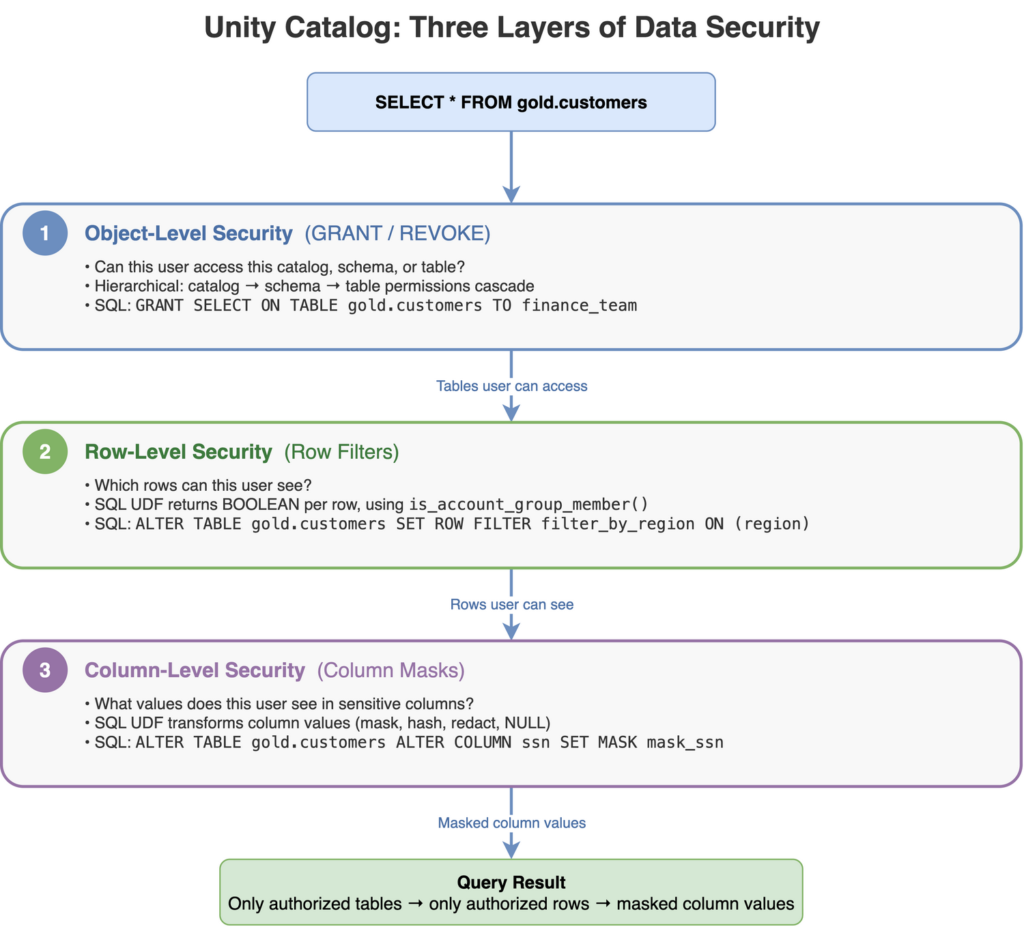
Layer 1: Object-Level Security (GRANT / REVOKE)
The foundation of Unity Catalog’s security model is hierarchical permissions on data objects. Grants cascade from catalog to schema to table, so a single GRANT SELECT ON SCHEMA covers every table within it. You can then selectively revoke access to specific sensitive tables without restructuring your entire permission model. The mistake I see most often: teams grant SELECT at the catalog level during development and forget to tighten it before production. Start narrow.
OBJECT-LEVEL SECURITY: HIERARCHICAL ACCESS GRANTS
-- Grant access at the schema level — cascades to all tables within

GRANT USE CATALOG ON CATALOG analytics TO `finance_team`;

GRANT USE SCHEMA ON SCHEMA analytics.gold TO `finance_team`;

GRANT SELECT ON SCHEMA analytics.gold TO `finance_team`;

-- Revoke access to a specific sensitive table

REVOKE SELECT ON TABLE analytics.gold.salary_bands FROM `finance_team`;
Layer 2: Row-Level Security (Row Filters)
What does a row filter actually look like in SQL? It’s a UDF that returns BOOLEAN, evaluated per row at query time. You have two main identity functions to work with: current_user() returns the querying user’s email (the direct equivalent of Power BI’s USERPRINCIPALNAME()), and is_account_group_member() checks whether the user belongs to a specific group in your identity provider (Entra ID, Okta, or any SCIM-synchronized directory). I recommend the group-based approach for most migrations, because it means you manage access through group membership in your identity provider rather than maintaining individual user mappings in SQL.
ROW FILTER: REGIONAL SALES MANAGERS SEE ONLY THEIR REGION
-- Create the filter function

CREATE OR REPLACE FUNCTION analytics.security.filter_by_region(region_col STRING)

RETURNS BOOLEAN

RETURN is_account_group_member(CONCAT('region_', LOWER(region_col)));

-- Apply to the table

ALTER TABLE analytics.gold.sales_pipeline

SET ROW FILTER analytics.security.filter_by_region ON (region);

-- Now: user in group 'region_emea' sees only EMEA rows

-- User in groups 'region_emea' AND 'region_apac' sees both

-- No DAX. No Power BI roles. Just group membership.

--

-- Note: this basic pattern has no "see everything" escape hatch.

-- For a global-access group, add an explicit OR check — see the

-- filter_sales_region example in the migration section below.

--

-- Also: this assumes group names match LOWER(region) values exactly.

-- If region values contain spaces or special characters, CONCAT may

-- produce group names that don't exist — silent false-negatives.
Layer 3: Column-Level Security (Column Masks)
Column masks are SQL UDFs that transform column values conditionally. Unlike Power BI’s OLS, which can only show or hide a column entirely, Unity Catalog column masks support partial masking, null masking, and hash masking. They return a transformed value instead of hiding the column altogether. The column still appears in query results, but its content is controlled by the masking function. This is the feature that got the compliance team on board during our migration, because they could finally show analysts that PII columns exist without exposing the actual data.
COLUMN MASK: PII VISIBLE ONLY TO COMPLIANCE TEAM
-- Create the masking function

CREATE OR REPLACE FUNCTION analytics.security.mask_email(email_col STRING)

RETURNS STRING

RETURN CASE

  WHEN is_account_group_member('compliance_team') THEN email_col

  ELSE CONCAT(LEFT(email_col, 2), '***@', SPLIT(email_col, '@')[1])

END;

-- Apply to the column

ALTER TABLE analytics.gold.customers

ALTER COLUMN email SET MASK analytics.security.mask_email;

-- Compliance team sees: maciej@entrada.ai

-- Everyone else sees: ma***@entrada.ai
One thing surprised me: each table can have only one row filter function. If you need multiple filtering dimensions (region and department and sensitivity level), you compose them inside a single UDF. This forces cleaner design than Power BI’s model, where roles accumulate organically, but it requires thinking through your access logic upfront.
A Simpler First Step: Dynamic Views
Before committing to native row filters, consider dynamic views as a stepping stone. A dynamic view embeds current_user() or is_account_group_member() directly in its WHERE clause. No UDF registration, no ALTER TABLE, no runtime version requirements. It’s a regular view that returns different rows depending on who queries it.
DYNAMIC VIEW: SAME FILTERING LOGIC, SIMPLER MECHANISM
CREATE OR REPLACE VIEW analytics.gold.sales_pipeline_secure AS

SELECT * FROM analytics.gold.sales_pipeline

WHERE is_account_group_member(CONCAT('region_', LOWER(region)))

   OR is_account_group_member('sales_global');
The trade-off: dynamic views require consumers to query the view, not the underlying table. Row filters enforce security regardless of how the table is accessed. In several migrations, I’ve started with dynamic views to validate the filtering logic and group design, then moved to native row filters once the team was confident in the access model. It’s a lower-risk on-ramp.
The Migration Playbook: DAX Filters → SQL UDFs
In my experience, the actual migration is less about rewriting syntax and more about shifting the enforcement point. The DAX-to-SQL rewrite takes a day. Redesigning group membership and testing the new access model takes a week. Here’s what maps, what doesn’t, and what to watch out for.
| POWER BI CONCEPT | UNITY CATALOG EQUIVALENT | KEY DIFFERENCE |
| RLS (DAX filter) | Row Filter (SQL UDF) | Enforced at data layer, not BI layer |
| OLS (Tabular Editor) | Column Mask (SQL UDF) | Conditional masking, not binary show/hide |
| USERPRINCIPALNAME() | current_user() or is_account_group_member() | current_user() is the direct equivalent; groups recommended for scale |
| Role assignment (PBI Service) | Group membership (Entra ID / Okta) | Managed in identity provider, not BI tool |
| Additive roles (union) | Single UDF with explicit logic | You control OR/AND logic; no implicit union of multiple roles |
| Inactive relationship filters | Not applicable | UC filters are per-table, no relationship model |
Side-by-Side: A Real Migration
Here’s a real example: the regional sales filter that existed as 12 separate Power BI roles, consolidated into a single SQL UDF.
BEFORE: POWER BI – ONE STATIC ROLE PER REGION (12 TOTAL, DEFINED IN MANAGE ROLES)
-- Role: "EMEA Sales" (created in PBI Desktop > Modeling > Manage Roles)

-- DAX filter expression on Sales table:

[Region] = "EMEA"

-- Role: "APAC Sales"

-- DAX filter expression on Sales table:

[Region] = "APAC"

-- ... repeated for 10 more regions

-- Each role published, then manually assigned to users in PBI Service

-- (Dynamic RLS with USERPRINCIPALNAME() could reduce this to 1 role,

--  but the client never got there — 12 static roles accumulated over years)
AFTER: UNITY CATALOG – ONE SQL UDF FOR ALL REGIONS
-- One function replaces 12 Power BI roles

CREATE OR REPLACE FUNCTION analytics.security.filter_sales_region(region STRING)

RETURNS BOOLEAN

RETURN

  is_account_group_member('sales_global')  -- Global team sees all

  OR is_account_group_member(CONCAT('sales_', LOWER(region)));

ALTER TABLE analytics.gold.sales_pipeline

SET ROW FILTER analytics.security.filter_sales_region ON (region);

-- Add a user to a region: update their AD group

-- No Power BI republish. No DAX changes. No role assignment in PBI Service.
What Doesn’t Map 1:1
- Additive roles trap: In Power BI, a user in two roles gets the union of both filters. In Unity Catalog, you control the logic explicitly inside your UDF. If the function returns
FALSE, the row is invisible. This is safer by default, but it requires different thinking about group design. You grant access explicitly; everything else is denied. - Relationship-based propagation: Power BI RLS filters cascade through active relationships in the semantic model. A filter on the Regions table automatically restricts Sales, Inventory, and every related table. UC row filters are per-table. If you need cross-table filtering, apply filters to each table independently or use views that join filtered tables together.
- Time travel: This one caught us off guard. UC row filters are incompatible with time travel queries (
AS OF). We discovered this mid-migration when a finance team’s historical reconciliation report broke. The workaround: maintain unfiltered archive tables with separate object-level access controls, or use views that apply the filtering logic without the row filter mechanism.
The Coexistence Pattern: When Power BI Still Needs Its Own Security
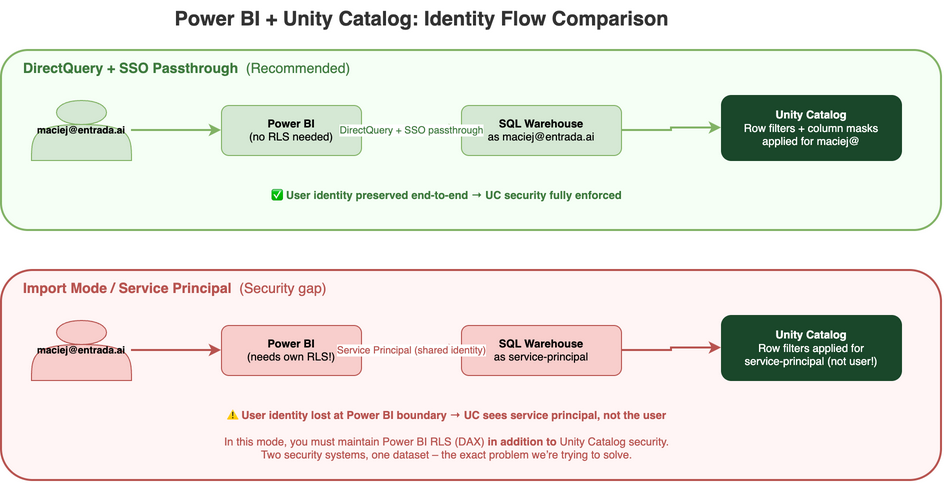
The first question I ask in every migration engagement: how does Power BI connect to your data? The connection mode determines whether user identity survives the path from the browser to the SQL Warehouse, and that determines whether Unity Catalog can enforce per-user security on its own.
DirectQuery + SSO: The Clean Path
In DirectQuery mode with SSO enabled, the user authenticates in Power BI, and their identity passes through to the Databricks SQL Warehouse. Unity Catalog sees the actual user (not a service account, not an embedded credential) and applies row filters and column masks for that user. Power BI becomes a pure visualization layer with zero security logic of its own. Every filter, every mask, every grant is managed in Unity Catalog and enforced at the data layer.
This requires Databricks with Entra ID integration, DirectQuery mode (not Import), and SSO configured between Power BI and the Databricks workspace. On Azure, this is fully GA and well-documented. Databricks on AWS has recently added Entra ID SSO support, though the DirectQuery viewer-identity-passthrough pattern is newer and less mature than on Azure, so check the latest Databricks documentation for current status. On GCP, SSO passthrough isn’t currently available; you’ll connect via service principal or PAT, which means the Import mode pattern below applies. It’s the cleanest path because it eliminates the duplication entirely: one security model, one audit trail, one place to manage access.
Import Mode / Service Principal: The Dual-Security Reality
Import mode is a different story. Power BI connects with a service principal or a shared credential, pulls the data into the Power BI dataset, and serves it from the in-memory model. Unity Catalog sees the service principal, not the end user. Row filters apply to the SPN’s identity, which likely has broad access because the service principal needs to import data for all users.
In this mode, you must maintain Power BI RLS in DAX for user-level filtering. The service principal pulls all the data; DAX filters restrict what each user sees in the report. Two security systems, one dataset. The original problem persists. Unity Catalog still provides value in this scenario: it governs direct queries from notebooks, SQL editors, and APIs. But for BI consumers, Power BI needs its own RLS layer. Most clients I work with spend three to six months in this dual-security mode while their infrastructure team enables DirectQuery + SSO. Plan for it; the transition is worth the temporary overhead.
Limitations to Know Before You Migrate
I keep a running list of gotchas from each migration. Three of these will almost certainly affect you; the rest are edge cases worth knowing.
The four that bite in every migration
- Runtime version matters more than you think. Shared access mode requires 12.2 LTS or later. Dedicated (single-user) access mode requires 15.4 LTS or above, but 15.4 through 16.2 support read-only operations only. Full write support (INSERT, UPDATE, DELETE, MERGE) on filtered tables requires 16.3+, and MERGE on partitioned tables where the policy references partition columns requires 17.2+. Older runtimes fail securely: they return no data rather than ignoring filters. Safe, but your users will file tickets when their queries return zero rows.
- Time travel and row filters don’t mix.
AS OFqueries are incompatible with row filters. If your finance or audit teams rely on historical snapshots, you need a workaround before you flip the switch. - One row filter per table. If you need multiple filtering dimensions (region and department andsensitivity), compose them inside a single UDF. Design this upfront, because retrofitting a monolithic filter function is painful.
- Performance is real. Row filter UDFs execute per-row at query time. Even
is_account_group_member()itself has overhead (it’s cached per session, but still requires identity resolution on first call). On billion-row tables, keep your filter logic simple and avoid joins or subqueries inside the UDF. Where possible, filter on columns clustered with Liquid Clustering so that predicate pushdown can prune data files before the UDF evaluates. Test query performance early in the migration.
Edge cases worth knowing
- Cannot apply row filters or column masks to views directly. Apply them to underlying tables, and filters cascade through.
- Materialized views and streaming tables do support row filters, but not when declared within Lakeflow Spark Declarative Pipelines. An important subtlety: the materialized data is refreshed under the owner’sidentity (definer context), so the materialized result contains all rows. The row filter then applies at query time for each reader. This is the intended behavior, but it surprises engineers who expect the materialization itself to be pre-filtered.
- Delta Sharing providers cannot share tables that have row filters applied. Use dynamic views as a workaround for shared datasets. Recipients can apply their own row filters to shared tables they receive. However, Delta Sharing recipients can apply row filters and column masks only to shared tables and foreign tables – not to streaming tables or materialized views.
- Row filters cannot reference other tables that also have row filters (no recursive policies).
- Federated tables (foreign tables) do support row filters. In our experience, Lakehouse Federation with foreign catalogs (e.g., PostgreSQL, Snowflake) works reliably because the row filter evaluates on the Databricks side after the foreign query returns. Legacy JDBC connections are more brittle: filter pushdown behavior varies by driver, and performance depends heavily on whether the underlying source supports predicate pushdown. Test with your specific federation setup before rolling out to production.
MERGEoperations fail on filtered tables if the UDF contains nesting, aggregations, windows, limits, or non-deterministic functions. More broadly, all write operations on filtered tables require runtime 16.3+ on dedicated access mode, andMERGEon partitioned tables where the policy references partition columns requires 17.2+. In practice, many ETL pipelines useMERGEon target tables. The workaround we use: runMERGEfrom a service principal with elevated privileges that bypasses the row filter (the owner or a principal withMODIFYgrant), keeping the row filter in place for all reader-facing access. Alternatively, stage data into an unfiltered table,MERGEthere, and let the row filter apply on the final read-facing table.
Testing Row Filters Without “View As”
I criticized Power BI’s manual “View As” testing earlier, so it’s only fair to show how we test row filters in Unity Catalog. The difference: UC security is SQL-based, which means you can script and automate your tests.
INSPECTING AND TESTING ROW FILTERS
-- See which filters are applied to a table

DESCRIBE DETAIL analytics.gold.sales_pipeline;

-- Check the current executing identity

SELECT current_user();

-- Check group membership (useful for debugging)

SELECT is_account_group_member('region_emea');

-- Test as a specific user: run from a notebook authenticated

-- as the test account, or use a service principal scoped to

-- the groups you want to verify

-- Count rows visible to the current identity

SELECT COUNT(*) FROM analytics.gold.sales_pipeline;

-- Compare against unfiltered count (requires owner/admin access)

SELECT COUNT(*) FROM analytics.gold.sales_pipeline WITH (SECURITY_NONE);

-- Note: WITH (SECURITY_NONE) requires MODIFY privilege
In our migrations, we build a test matrix: one service principal per security group, each running a standard set of count-and-sample queries. The test suite runs in CI after every change to a filter UDF. It’s not glamorous, but it replaces hours of manual “View As” clicking with a five-minute automated check.
The Bottom Line
The 47 static roles I started with? They became 8 SQL UDFs in Unity Catalog, managed through AD group membership instead of manual role assignments in the Power BI Service. But the real win wasn’t the syntax change. It was that the security team stopped asking “is the Power BI policy in sync with the data layer?” There was nothing to sync anymore. One set of policies, one identity model, one audit trail, whether the query comes from a dashboard, a notebook, or an API. The security review that used to take two weeks now takes an afternoon, because there’s one system to audit, not two.
For organizations that outgrow group-based filters, the natural next step is attribute-based access control (ABAC) with Unity Catalog governed tags. Instead of writing explicit group checks in every UDF, you tag columns and tables with sensitivity attributes, and policies resolve dynamically based on the querying user’s attributes. It’s the same principle (define once, enforce everywhere) at a higher level of abstraction.
Define it once. Enforce it everywhere. Audit it always.